Broker Guide to Editing Quotes
Find out how to edit saved quotes within our platform
Posted in WEBroker News system updates , editing quotes , quotes on 30 March 2026

We have added some new functionality to our system, that will enable you edit saved quotes. This means if a customer forgets something, or decides they want to change the details of their quote, you can quickly and easily amend their quotes and either save it with the same quote number or a different quote number.
Accessing a Saved Quote
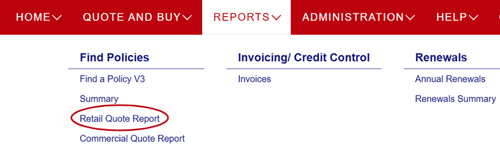
1. To access a quote, you’ve already processed, once logged in, you need to go the top menus and select REPORTS > Find Policies > Retail Quote Report.
2. Once that page has loaded you will be able to search for a saved quote using the following criteria:
- Period
- Month
- Quote Number
- Surname
Quote Number is the preferred method as you know you will be accessing exactly the quote you need, other search criteria may return a number of different quotes.
3. Once you have searched for the quote, you should see a screen similar to the one below

Opening and Editing the Saved Quote
1. You should see four icons on the right hand side of the results after the box with the email address in
 |
Edit Quote - | Opens the quote for you to edit |
 |
Quote Audit - | This shows a limited history of changes made to the quote to help you keep track |
 |
Email Quote - | Sends the email to the quote in the email box on the left, this can be changed to a different email address by overtyping |
 |
Print Quote - | Allows you to print the quote |
2. Whether you just want to view a quote or actually edit it click the button
3. This will take you into the normal customer journey, however the information will be pre-filled from the previously saved quote
4. You will now be able to make changes to the quote elements including:
- Trip Destination
- Insured Persons
- Cover Level
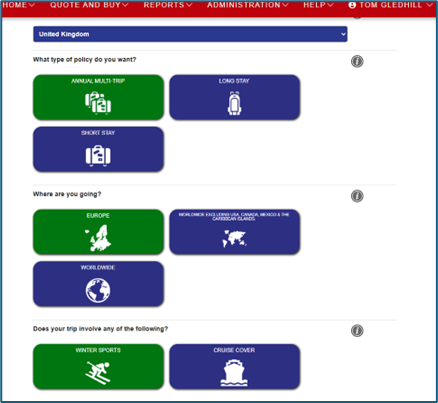
5. Editing quotes will follow the same rules as as a normal quote, so you may find some changes trigger warning notices and you may need to re-select certain criteria
Re-saving the Quote
- Clicking the SAVE QUOTE will enable you to save the changes you have made to the quote
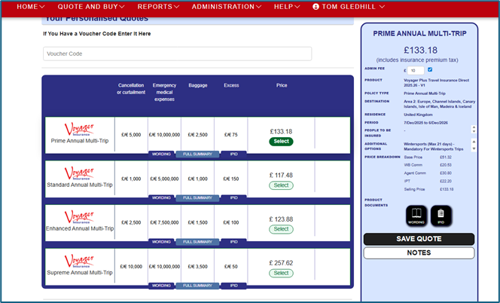
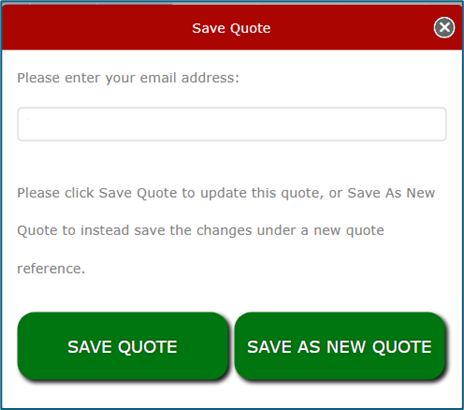
2. When saving the quote again the system will give you the choice of whether you want to save the quote with the same quote number or a different quote number:
- Save Quote - Uses the same quote number as the orignal, if the customer only needs one quote, or it is fixing something on the quote, e.g. slightly wrong dates
- Save as New Quote - Save the edited quote as a new quote, great if the customer is looking for more than one quote
Please note: once a quote has been converted into a live policy, the policy number may differ slightly from the reference of the quote purchased. This only happens if certain changes are made to a saved quote and is by design. You’ll first see the final policy number immediately on the confirmation screen after purchase as usual, and it will also show in your documentation email, arriving shortly after.
Saved Quote Audit
The system has the ability to generate a report so you can see the various changes that have been made, in the Saved Quote Audit.
1. Use the Retail Quote Report to find the Quote
2. Click the Saved Quote Audit button
3. The report will show quote's change history, including the user who made the changes and that timestamp of when the changes were made

Please Note: Note every type of change is shown, however all major edits are.
If you have any questions about editing quotes on the system contact the Voyager Broker Support Team on 01483 562 662 or email: enquiries@voyagerins.com